Alerts & Exclusions Look Overhaul
At Radegast EDR, our goal is simple – to make security easy for everyone. No matter your experience level, we believe protecting your endpoints shouldn’t be a headache.
That’s why we have overhauled the look and feel of the alerts view. By enhancing all three components—the Rustinel engine, the agent, and the Console—alerts now show information in a much more user-friendly way instead of requiring users to parse raw JSON in their heads. What has changed?
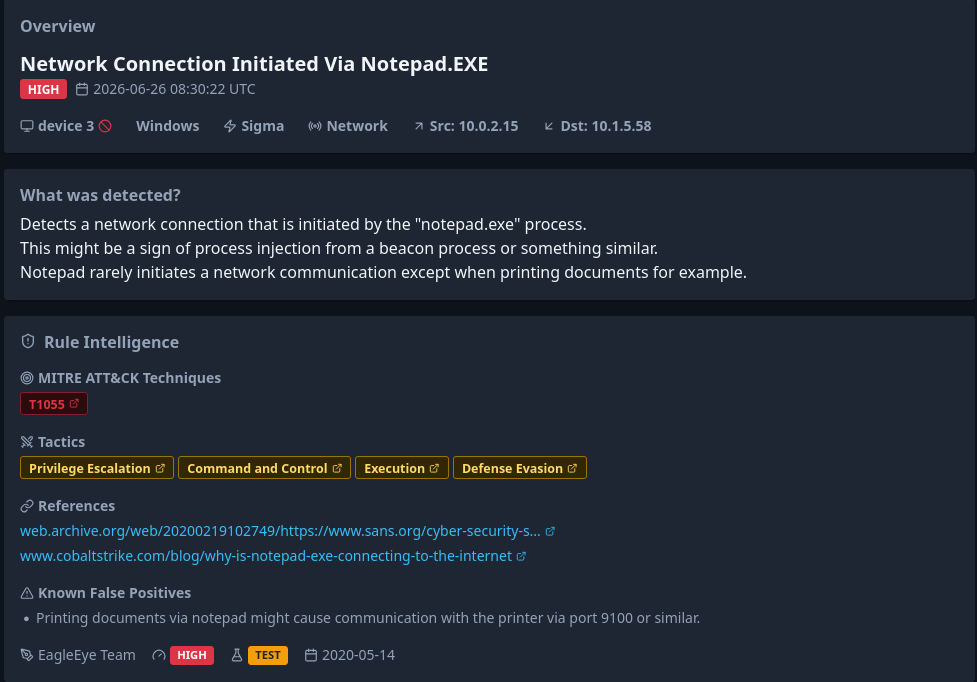
Quick detection overview
Before showing details of what actually happened, it is good to understand the context behind what was supposed to be detected. This is why each alert (produced by at least agent version 0.5.0 and Rustinel version 1.1.4r1) now shows a rule description and clickable links for TTPs and further references. This allows an analyst to set an expectation of what to look for in the actual alert data.
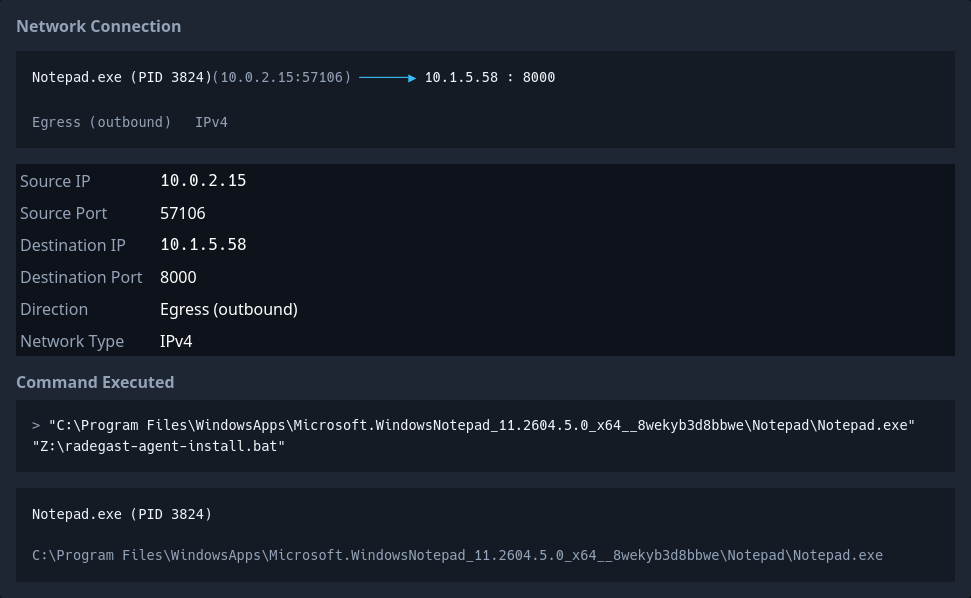
Alert details
When the analyst knows what to expect, the actual details of what happened are shown. These details are alert-specific, and the information shown depends on the type of alert triggered. Generally, this section shows the user everything about the actual alert in a nicely formatted and user-readable way.
Context and actions
The last section shows the context of the device and the actions that the user can take. It shows information about the device and detection, including the group that the device is part of and the detection pack that caused this error. This information is useful for tracking packs that are too noisy for your environment.
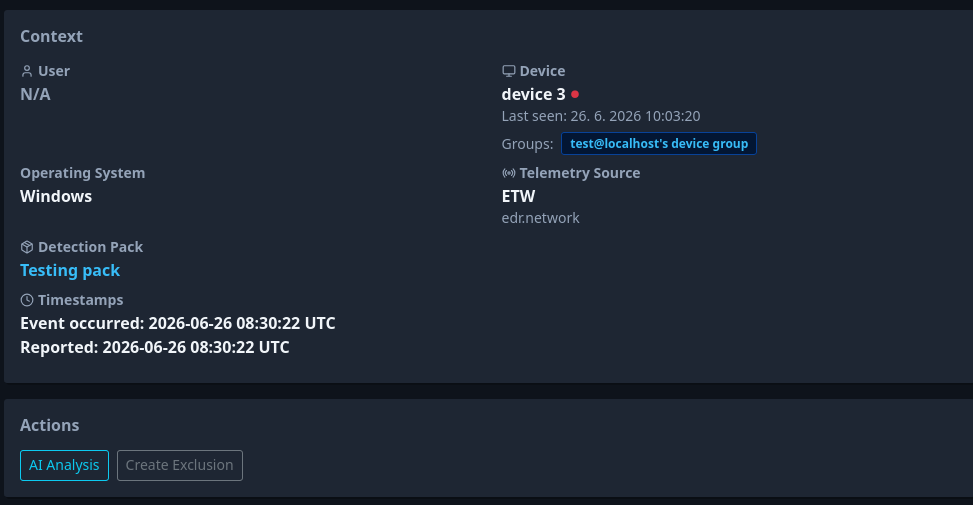
Underneath the alert context, you will find the actions that you can take with the given alert.
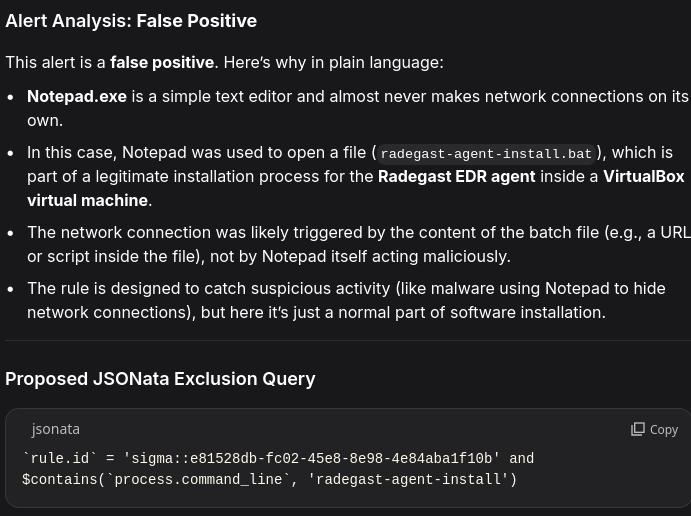
AI Analysis
If you are unsure whether the alert is malicious or benign, or if you would like help with creating a Detection Exclusion, you can use the AI Analysis button as a helper that will point you to the right detection. When you click on this button, it will open a new tab with the tool you have configured in settings (Proton Lumo by default). The window will have a prefilled prompt with the alert details and rule context, which the assistant will try to analyze to determine if the intent is malicious or not. Please keep in mind that by using AI Analysis, you are sharing the alert details with the AI service provider—this means that you may share potentially sensitive data, and the results may not always be correct. Always think before using this mode and evaluate the results it shows.
Exclusions
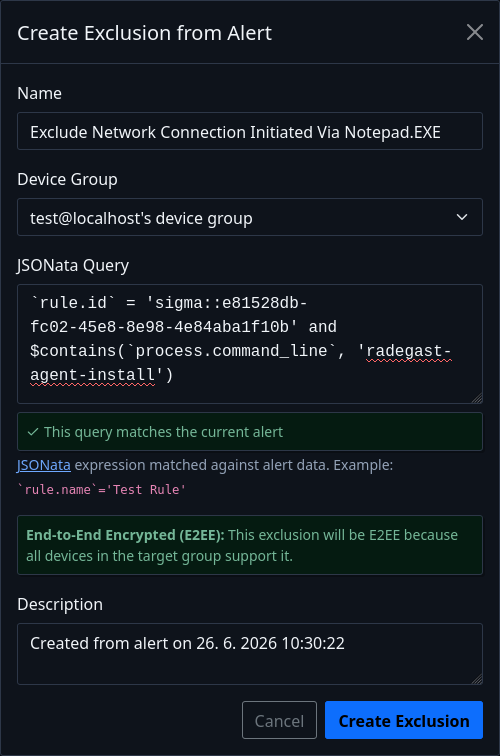
When you encounter a false positive alert in your environment, you might want to prevent this specific behavior from creating alerts in the future. This is what Exclusions are for. Upon clicking “Create Exclusion,” a new dialog will be shown where you can select which group the exclusion should be applied to (in case your device is a member of multiple groups) and the exclusion query in JSONata format. These exclusions will be synced to your endpoints together with detection packs; if a new alert is triggered that matches an exclusion query, the alert will no longer be forwarded to the Console.
Extended EDR mode
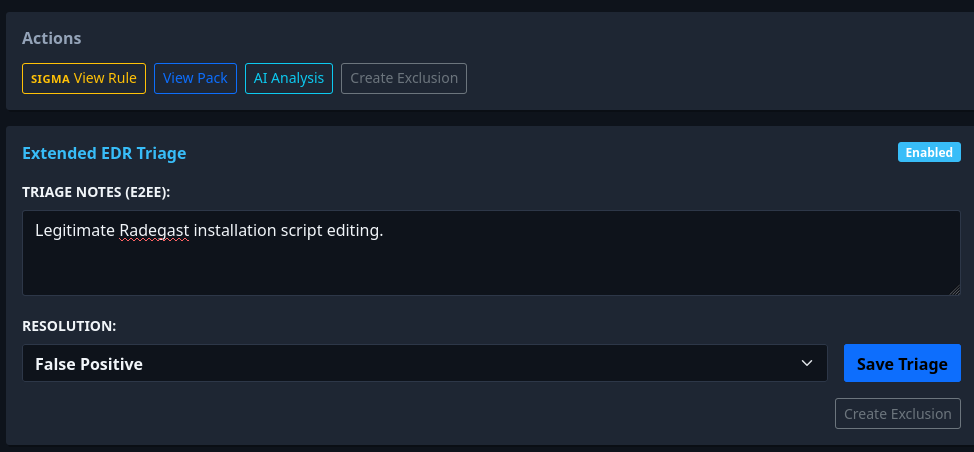
The Radegast Console is designed to be as easy to use as possible. This means intentionally hiding some extended functionality from users to avoid confusing them. However, if you are working in a team with multiple people, or if you are a power user who wants tighter controls, you may want to enable Extended EDR Features in your settings. This will unlock more features for you, such as:
- Hunt mode - An overview of all alerts with JSONata filtering and raw JSON output.
- Alerts triage notes - E2EE notes that you can attach to each alert for your team members.
- Alerts resolution status - Alerts are no longer just “unread” or “read.” Now you need to explicitly select the state, such as false positive or true positive. Exclusions can no longer be created for alerts that are not marked as false positives.
- Soft exclusions - By default, all exclusions are “hard”—meaning excluded alerts are never sent to the Console. If you want to keep the telemetry (e.g., for Hunt mode) but don’t want to get alerts anymore, you can mark the exclusion as Soft, which will force the alert severity to be set as Informational.
Alert data stays E2EE
While doing this redesign, we kept sensitive alert data E2EE. Your alert details are encrypted on your endpoints and decrypted only in your web browser; the Console never sees the raw content. Same goes for detection exclusions—only you, your teammates, and your devices are able to see what you are excluding in plain text. The only details that the server can see for each alert are the severity (required for sending notification emails) and the triggered rule ID (so that context can be shown in the alert details after decryption).
If you want to stay updated about what is happening with Radegast EDR, consider: